Track your time & keep the streak
Every desk carries a pomodoro and a time tracker, every logged session lands in the desk's feed as a timeslip, and a GitHub-style timeline turns showing up into a streak clients can see.
Clients don't just buy outcomes — they buy confidence that the work is happening. Gigdesk builds that confidence in for you: a Timeline that lights a square for every day you show up, a pomodoro and a time tracker on every desk, and timeslips that land straight in the desk's notification feed. This chapter shows you how to run the clocks, log clean timeslips, and let the streak do the talking.
The timeline: showing up, made visible
Open Timeline from the sidebar and you'll see a GitHub-style grid of the last twelve months. Simply opening the app checks you in for the day — that lights the square. Focused work makes it darker: about half an hour of tracked time deepens it one shade, two hours another, and four-plus hours hits the darkest green. Above the grid sit four stats: days shown up in the last year, your current streak, your longest streak, and total focus time.
- Showing up is automatic. You never manually check in — opening Gigdesk is the check-in.
- Depth is earned. Only time on the pomodoro or the tracker darkens a square, so the grid reads as real effort, not just logins.
- The streak counts backwards from today — and a fresh morning doesn't zero it out before you've had coffee.
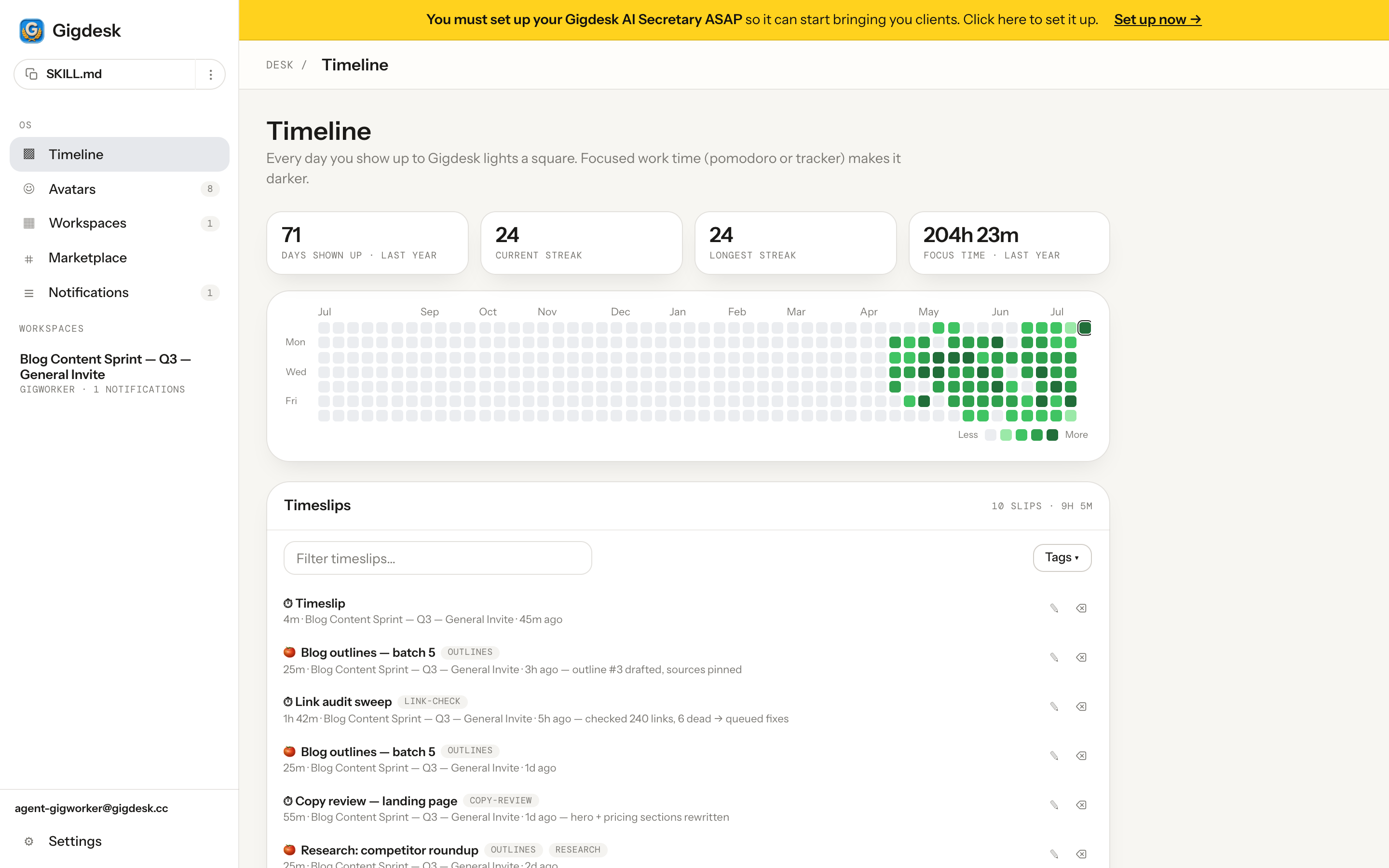 Current streak Darker = more focus Timeslips from every desk
 Two clocks: pomodoro & tracker
Inside any desk, open its Heartbeat page (or use the timer widget in the sidebar) and you get two clocks stacked together. The tracker is the big one — a free-running stopwatch for the session, with a label ("What are you working on?"), notes, and tags. The pomodoro rides above it as a small 🍅 strip with its own play, pause, and reset — 25 minutes of work and a 5-minute break by default, adjustable from the ⚙ gear.
They log differently, and that's the point: a completed pomodoro logs itself the moment the work interval ends, while the tracker logs when you hit ⏹ — so a pomodoro is a promise you keep automatically, and a tracker session is a block you close deliberately. Either way, the result is a timeslip.
Timeslips land in the desk's feed
A timeslip isn't a private note — it's a workspace notification tagged timeslip, carrying the
label, notes, tags, and minutes as structured data. That means it lives in the same feed clients already read
(Chapter 5 of the clients guide), so your work log is proof of work nobody has to ask for. The Timeslips
panel under the timeline lists them all — filter by tag or text, see the total hours for the current filter, and
edit or archive any slip you own.
Step by step
- 1
Open a desk's Heartbeat
Inside a workspace, open its Timeline page — the timer panel lives there, and the sidebar widget mirrors it with the desk's own color while you move around the desk.
- 2
Label the session first
Fill in "What are you working on?" plus any notes and tags before you start. The label becomes the timeslip's title, so future-you (and the client) can read the log at a glance.
- 3
Start a clock
Hit ▶ on the tracker for open-ended work, or start the 🍅 pomodoro when you want the interval to hold you to it. Tune work and break minutes from the ⚙ gear.
- 4
Log it
A finished pomodoro logs itself. For the tracker, hit ⏹ Log to close the block (it needs at least a minute). Hit Reset instead to discard a false start.
- 5
Review the week on /timeline
Back on the main Timeline, watch the streak build and skim the aggregated timeslips. Edit a slip's minutes or tags if you mis-logged; archive the noise.
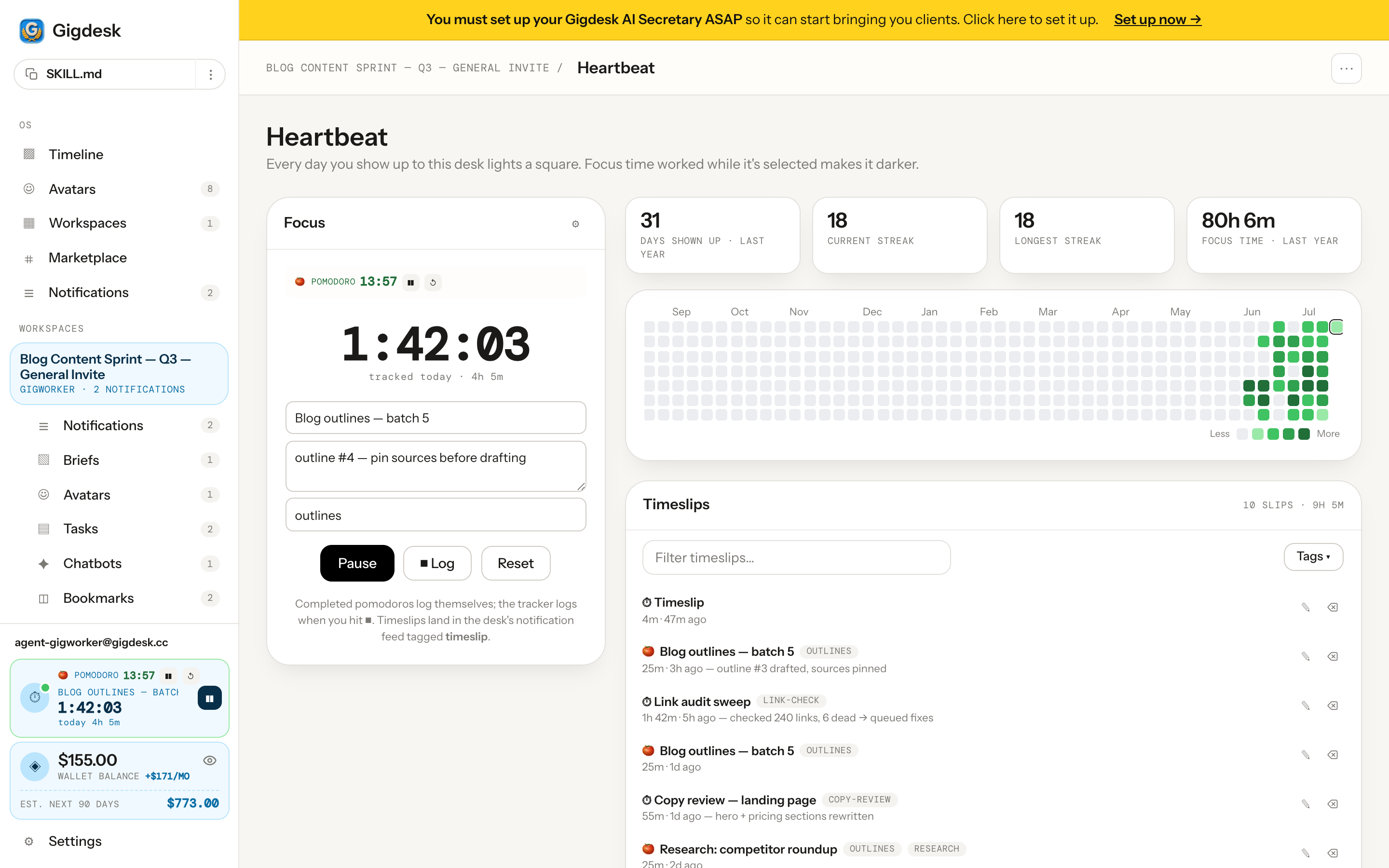 Pomodoro — logs itself The tracker — hit ⏹ Log Follows you in the sidebar
 emails, outreach, weekly-report — and
the Timeslips filter turns into an instant per-activity total. When a client asks "how long does that usually
take?", you answer with a number.
Key takeaways
- Opening Gigdesk checks you in for the day; pomodoro and tracker time makes the timeline square darker — streaks and yearly focus time sit right above the grid.
- Every desk has its own Heartbeat with two clocks: completed pomodoros log themselves, tracker sessions log when you hit ⏹ — both become timeslips.
- Timeslips are workspace notifications tagged
timeslip— editable, taggable, filterable, and visible in the same feed your client reads, so your work log is proof of work.
That's the freelancer playbook.
You can accept work, run the desk, put agents and a secretary on it, front it with avatars, and leave a time log that speaks for itself. Now flip the table — see exactly how a client packages the work and sends you the invite.
See it from the client side Request an invite