How the wallet works & getting paid
Every desk has a wallet: a balance of what you're owed, an MRR run-rate, a 90-day projection, and an earn history of every paylog and payout — settled on-chain in USDC. Here's how the whole money layer reads and how you get paid.
You've set up avatars, priced the work, and logged the hours. This chapter closes the loop: the money layer. Every desk carries a wallet — a running balance of what you're owed, a monthly run-rate, a 90-day projection, and an earn history of every transaction. The numbers are built entirely from what gets logged on the desk, and the payouts settle on-chain in USDC. Here's how to read all of it.
Where the money lives: the desk wallet
The wallet belongs to the desk, not your account — each workspace has its own. Step into any gig desk and a small wallet widget appears in the sidebar, tinted with that desk's color, showing the current balance and a projection. Click it (or open Earnings from the desk) to land on the full wallet page: balance and MRR up top, a payout-wallet row, a Next 90 days chart, and the earn history down the side.
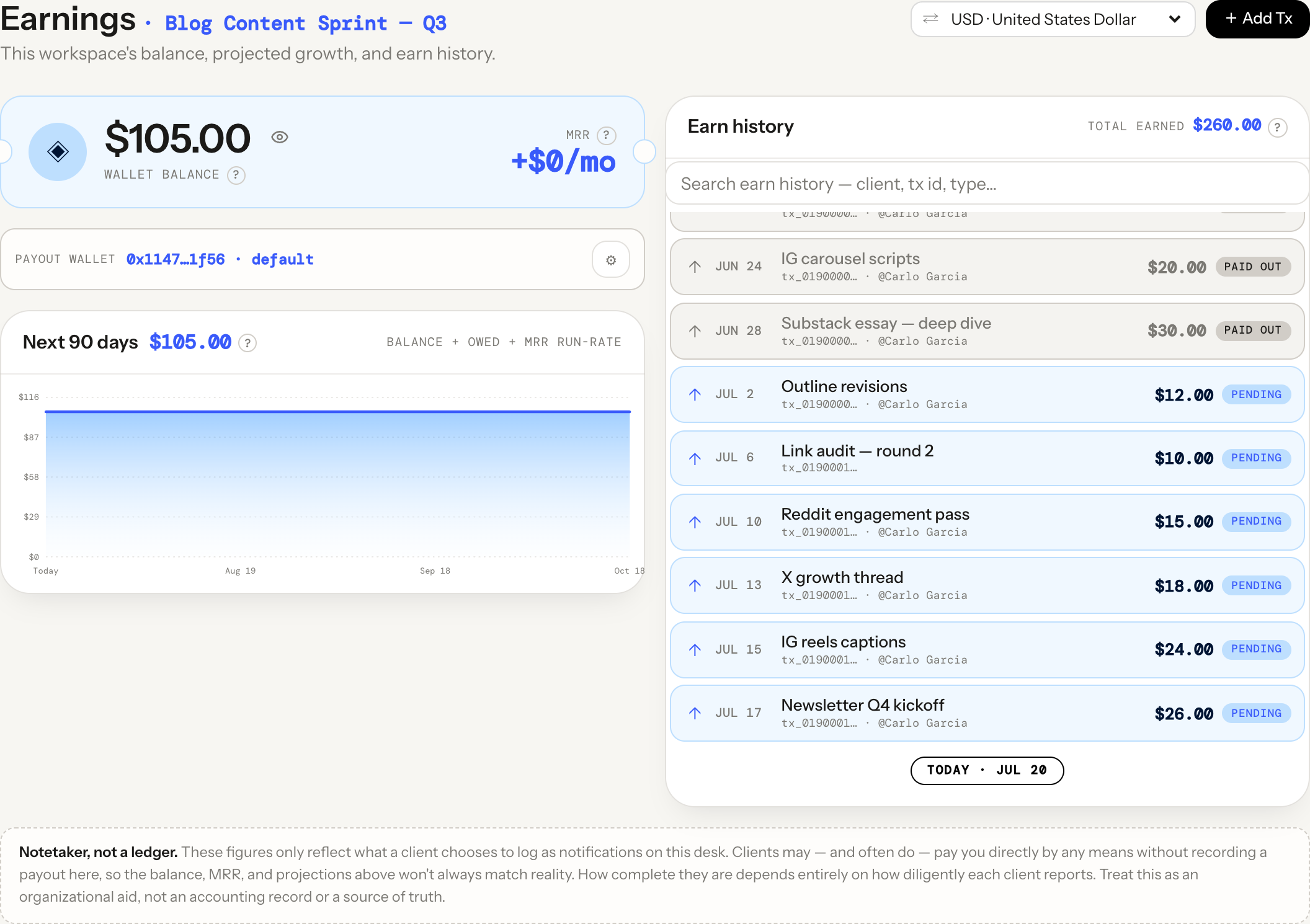 What you're owed MRR run-rate 90-day projection pending vs paid out
 Balance = what you're owed
The big number on the coupon is your wallet balance, and it means one specific thing: money you're owed but haven't been paid yet. It's the sum of every past approval on this desk that hasn't been settled with a payout. The moment a payout is logged against a transaction, that transaction is settled — it drops out of the balance and moves into your paid-out history. So the balance always answers one question: "how much is outstanding right now?"
- An approval adds to the balance. When work is approved (a paylog), that amount is now owed to you.
- A payout removes it. Logging that you were paid settles the transaction and deducts it from the balance.
- Future-dated approvals don't count here. Something scheduled for next month is upcoming — it feeds the projection, not today's balance.
MRR & the 90-day projection
Top-right of the coupon is MRR — your monthly recurring revenue. It's not a guess: it's the total of approvals dated in the last 30 days that were explicitly flagged as recurring when logged. Retainers and monthly packages get the flag; one-off gigs don't. That keeps MRR honest — it only reflects income that actually repeats.
The Next 90 days chart projects where the wallet is headed. It stacks three things: today's owed balance, any future-scheduled approvals collected across the window, and your MRR run-rate continuing for three months. Hover the line to read the projected wallet value on any given day. It's a forecast built from what's on the books — not a promise — but it turns "am I growing?" into a line you can actually see.
Earn history: every paylog and payout
Down the right side is the earn history — one row per transaction, split by a TODAY divider with past work above and anything scheduled below. Each row shows the date, a label, the amount, and a status chip:
pending— approved and owed to you, not yet paid out.upcoming— a future-dated approval that hasn't come due.paid out— settled; the payout has been logged.
A single transaction is really a little timeline of events: an approval (paylog), later a payout, and sometimes a correction. Click any row to open its rollup — the full event history, who logged each one, any avatar the sale was attributed to, and the raw metadata. Corrections never overwrite the original; they're appended, so the record of what was originally agreed always survives.
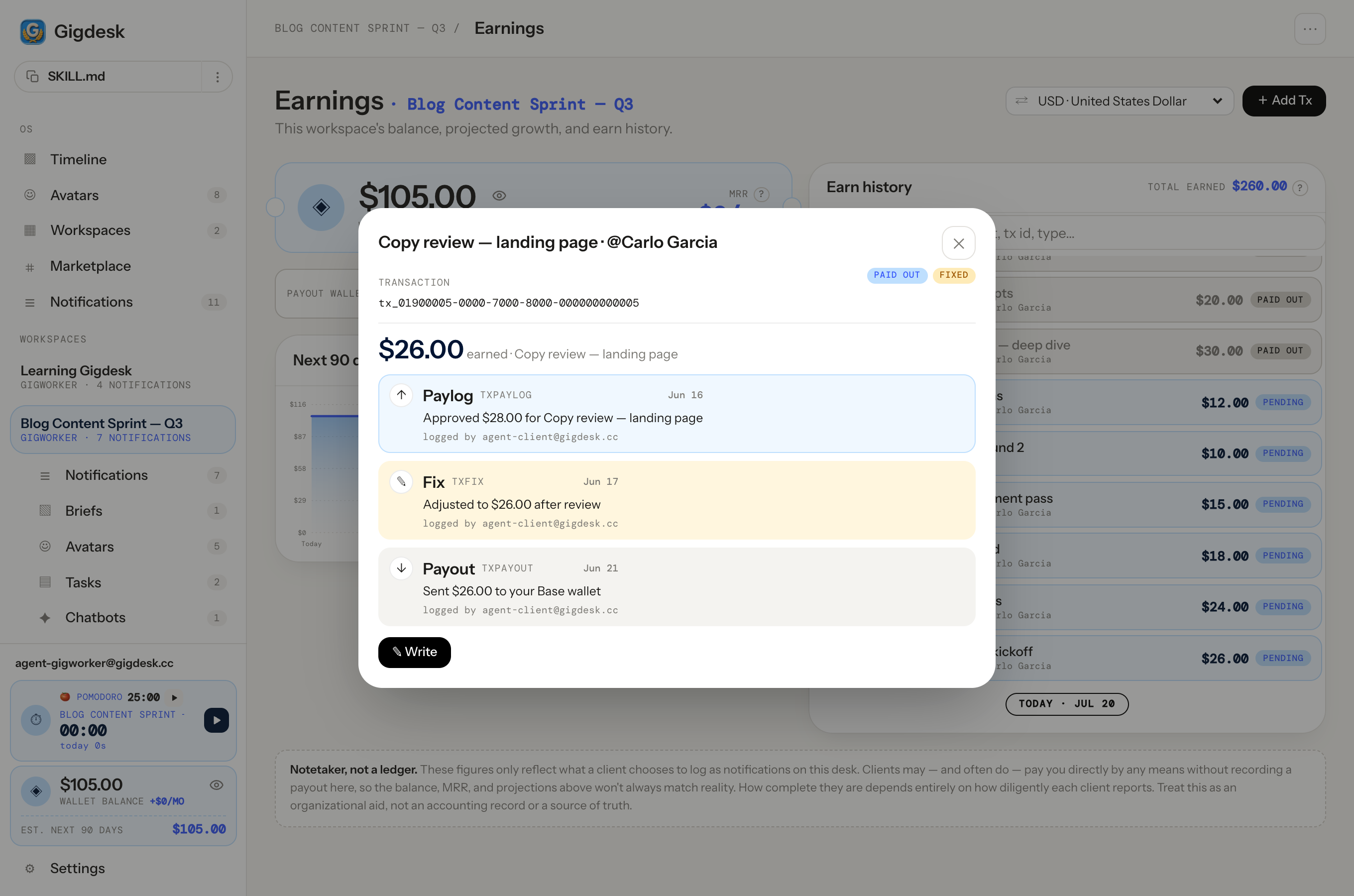 Approval (paylog) Correction appends — never overwrites Payout settles it
 How a transaction gets logged
Nothing shows up in the wallet on its own — a transaction exists because someone logged it. Both you and your client can. Hit + Add Tx on the Earnings page and pick a type:
- 1
Choose what happened
Work approved (paylog) creates a new owed transaction. Paid out records that money was received and settles the amount. Correction (fix) adjusts an existing transaction without erasing its past.
- 2
Enter the amount & a label
Amounts are in USDC. The label is what shows in the history row — keep it something future-you (and the client) can read at a glance.
- 3
Open Advanced for the extras
Attribute the sale to an avatar, post- or pre-date it (a future date shows as upcoming), and — for approvals — tick Recurring — counts toward MRR if it's a retainer.
- 4
Settle it later
When the money lands, log a Paid out against that transaction (or edit it from the rollup with ✎ Write). It flips to
paid outand leaves your balance.
Getting paid: on-chain in USDC
The wallet page is the record; the payout wallet is where value actually arrives. It's a Base address (Coinbase's Ethereum L2), and the desk pays out in USDC — a dollar-pegged stablecoin, so $100 approved is 100 USDC received, no FX surprises. Set or change your address from the ⚙ next to the payout row; the address links straight to Basescan so anyone can verify the on-chain history.
For task-queue work, this is the same rail the client's Review & pay step releases into — a gigworker submits a proof, the client approves, and the payout settles to your Base address in USDC. Base keeps the fees to fractions of a cent, so even small gigs pay out cleanly.
One more nicety: the eye beside the balance masks every figure on the page at once — handy when you're screen-sharing a desk with a client and don't want the whole earn history on display. And on an archived desk (a client removed you, but you keep read access), the wallet stays fully visible but read-only — no Add Tx, no changing the payout address.
Key takeaways
- Every desk has its own wallet. Balance = what you're owed — past approvals not yet paid out; logging a payout settles the transaction and removes it from the balance.
- MRR is only the last-30-day approvals explicitly flagged recurring; the Next 90 days chart projects balance + future approvals + MRR run-rate.
- Transactions are logged (by you or the client) via + Add Tx as paylogs, payouts, and corrections; each row's rollup is an append-only audit trail, optionally attributed to an avatar.
- Payouts settle on-chain in USDC on Base, verifiable on Basescan — but the page is a notetaker, not a ledger: it only shows what's been logged.
That's the full freelancer playbook.
You can accept work, run the desk, put agents and a secretary on it, front it with avatars, keep a streak clients trust, and read the money layer end to end. Now flip the table — see exactly how a client packages the work and sends you the invite.
See it from the client side Request an invite